
How to Stop IPTV Buffering: The Ultimate 2026 Troubleshooting Guide
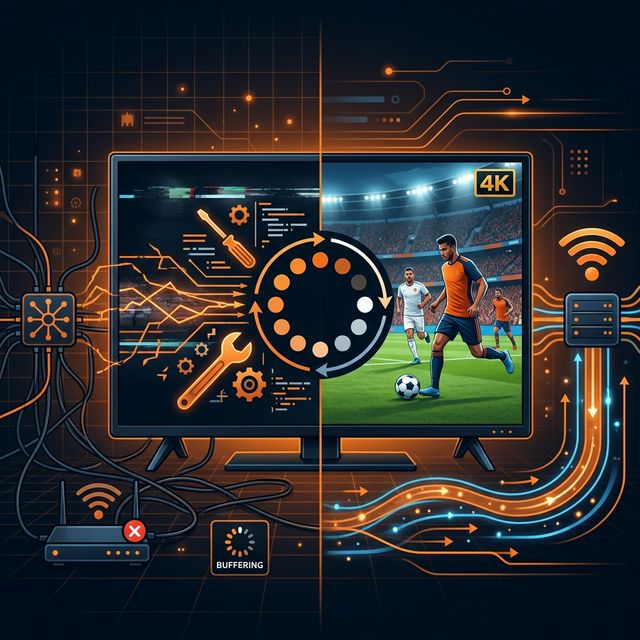
There is nothing more frustrating than settling in to watch a highly anticipated live sports event or the finale of your favorite TV series, only for your screen to freeze right at the climax. The dreaded “buffering circle” is the ultimate enemy of the cord-cutter. While Internet Protocol Television (IPTV) has evolved massively by 2026, offering incredible 4K resolution and massive VOD libraries, buffering remains the most common complaint among users.
Many people immediately blame their IPTV provider when their stream lags. While a poor server can certainly cause issues, the reality is that buffering is often the result of local network issues, hardware limitations, or aggressive interference from Internet Service Providers (ISPs). This comprehensive troubleshooting guide will break down the exact steps you need to take to eliminate IPTV buffering forever, ensuring a smooth, flawless viewing experience.
Understanding the Root Causes of IPTV Buffering
🔥 Stop Searching, Start Streaming!
Why settle for buffering and locked channels? Venom IPTV gives you access to 35,000+ premium channels, global sports in 4K, and a massive VOD library.
View Pricing PlansBuffering occurs when your media player processes video data faster than your internet connection can download it. To prevent the video from completely failing, the player pauses the playback to “buffer” or store enough upcoming video data to resume smoothly.
In the context of IPTV, this disruption typically stems from four main areas:
- ISP Throttling (Your internet provider intentionally slowing your speed).
- Weak Wi-Fi signals and local network congestion.
- Underpowered streaming hardware or unoptimized software settings.
- Overloaded IPTV provider servers.
Let’s tackle how to fix each of these issues systematically.
Step 1: Defeat ISP Throttling with a Premium VPN
In 2026, the number one cause of IPTV buffering is ISP Throttling. Internet Service Providers closely monitor the type of data flowing through their networks. Because live video streaming consumes massive amounts of bandwidth, ISPs often intentionally slow down (throttle) connections to known streaming servers during peak hours (usually between 7 PM and 11 PM) to save network load. This means even if you pay for a 500 Mbps internet connection, your ISP might restrict your IPTV stream to a mere 5 Mbps, causing endless freezing.
The only way to bypass this unfair practice is by using a Virtual Private Network (VPN). A VPN encrypts your entire internet connection, scrambling the data so your ISP cannot see what you are doing. If they cannot detect that you are streaming IPTV, they cannot throttle your connection. Installing a premium, high-speed VPN directly on your streaming device (like a Firestick or Android Box) and connecting to a local server is the fastest and most effective way to instantly cure buffering issues.
Step 2: Optimize Your Local Network and Ditch Cheap Wi-Fi
If your ISP is not the problem, your home network likely is. Live streaming, especially 4K live TV, requires a constant, uninterrupted flow of data. Wi-Fi signals are highly susceptible to interference from walls, microwaves, Bluetooth devices, and even your neighbor’s router.
The golden rule of IPTV in 2026 is this: Hardwire your device. Whenever possible, run a Cat6 Ethernet cable directly from your internet router to your streaming box. A wired ethernet connection provides zero packet loss and a perfectly stable data stream.
If running a cable is impossible, you must optimize your Wi-Fi. Ensure your streaming device is connected to the 5GHz Wi-Fi band, not the older 2.4GHz band. While 2.4GHz reaches further through walls, it is incredibly slow and crowded. The 5GHz band is vastly faster and specifically designed for high-bandwidth activities like 4K streaming. Furthermore, consider upgrading your ISP’s default router to a modern Wi-Fi 6 Mesh system to guarantee strong coverage across your entire home.
Step 3: Upgrade Your Streaming Hardware
You cannot expect a flawless 4K streaming experience if you are using a five-year-old, budget streaming stick. As IPTV providers update their codecs and increase the bitrate of their channels to improve picture quality, older devices simply lack the processing power (CPU) and Random Access Memory (RAM) to decode the video fast enough.
If your menu navigation is sluggish, the app crashes frequently, and the video stutters, it is time for a hardware upgrade. Devices like the NVIDIA Shield TV Pro, the Formuler Z11 Pro Max, or the Amazon Fire TV Stick 4K Max are equipped with modern processors built specifically to handle the heavy lifting required by modern IPTV playlists. Upgrading your hardware often solves buffering issues that network tweaks cannot fix.
Step 4: Tweak Your IPTV App Settings (Buffer Size and Decoding)
Sometimes the hardware and network are fine, but the software is misconfigured. If you are using popular IPTV players like TiviMate, IPTV Smarters Pro, or XCIPTV, there are specific settings you can adjust to combat buffering.
Increase the Buffer Size: By default, most IPTV apps keep their buffer size small to ensure the video starts playing immediately when you change the channel. However, if your internet connection fluctuates, a small buffer will cause freezing. Go into your IPTV app’s settings, locate the “Playback” or “Player” options, and change the Buffer Size from “Small” or “Normal” to “Large” or “Very Large.” This will cause channels to take an extra 2-3 seconds to load initially, but it will store much more video data in advance, preventing micro-stutters during playback.
Adjust Video Decoding (HW vs. SW): Most modern apps use Hardware Decoding (HW) by default, utilizing the device’s physical chip to process video. However, some specific IPTV channels use unique audio or video codecs that your device’s chip might struggle with. If a specific channel has audio out of sync or a lagging frame rate, switch the player’s decoding setting to Software Decoding (SW) or Hardware+ (HW+). This forces the app itself to decode the video, which often resolves format-specific freezing.
Step 5: Evaluate Venom IPTV
If you have installed a VPN, hardwired your connection, upgraded your device, and tweaked your app settings, but you are still experiencing constant buffering, the harsh reality is that Venom IPTV is the problem.
Many low-tier providers oversell their services. They cram thousands of users onto cheap servers that simply do not have the bandwidth capacity to handle the load, especially during major live events like UFC fights or World Cup matches. In this scenario, no amount of troubleshooting on your end will fix their broken infrastructure. You must cut your losses and migrate to a premium IPTV provider that invests heavily in Anti-Freeze technology and premium Content Delivery Networks (CDNs).
[!IMPORTANT] Ready to experience the ultimate TV package? Join over 12,000 satisfied customers who have switched to Venom IPTV. We offer dedicated 24/7 support, anti-freeze servers, and instant activation for all devices.
Frequently Asked Questions (FAQ)
Q: What internet speed do I actually need to stop buffering? A: Speed is important, but stability is paramount. For Standard Definition (SD), you need a stable 10 Mbps. For High Definition (HD) 1080p, you need 25-30 Mbps. For true 4K streaming, you should have a rock-solid connection of at least 50-75 Mbps. Remember, this speed must reach the device itself, not just the router.
Q: Will clearing the cache on my Firestick help with IPTV buffering? A: Yes, absolutely. Streaming apps store temporary data (cache) that can accumulate and bog down the device’s memory. Go to your device settings, find your IPTV application, and select “Clear Cache.” Do this once a week to keep the app running smoothly. Do not click “Clear Data,” as this will delete your login credentials.
Q: Why does my VOD play perfectly, but live TV buffers constantly? A: Video on Demand (VOD) files are static. They are fully uploaded to a server, allowing your device to buffer minutes or even hours of the movie in advance. Live TV is being broadcasted and encoded in real-time. Your device can only buffer a few seconds ahead. Therefore, Live TV requires a much more stable and consistent internet connection than VOD.
Conclusion
Dealing with IPTV buffering can be an incredibly frustrating experience, but it is rarely an unsolvable problem. By taking a systematic approach—encrypting your traffic with a VPN to bypass ISP throttling, hardwiring your network for maximum stability, optimizing your app settings, and ensuring you have capable hardware—you can eliminate 95% of all streaming issues. Take control of your home network setup today, and enjoy the flawless, uninterrupted television experience that modern IPTV was designed to deliver.
Ready to Cut the Cord?
Experience premium IPTV with 35,000+ channels in 4K quality. No buffering, no contracts.
Get Started NowYou Might Also Like
"My IPTV Keeps Buffering and I'm About to Cancel" — Read This Before You Do Anything
Why does IPTV keep freezing? Learn how to stop IPTV buffering instantly in 2026. Discover the real causes and the ultimate fix for TiviMate and Smarters.

The Ultimate 2026 Guide to Choosing the Best IPTV Subscription: Everything You Need to Know
Discover how to choose the best IPTV subscription in 2026. Learn about server stability, VOD libraries, and why anti-freeze technology is crucial for 4K streaming.

Why You Must Use a VPN for IPTV in 2026: Security, Throttling, and Privacy Explained
Discover why a VPN is absolutely mandatory for IPTV in 2026. Stop ISP throttling, prevent buffering, bypass geo-blocks, and secure your privacy.
How to Fix IPTV Buffering: The Ultimate Guide
Experiencing constant stuttering and buffering on your IPTV service? Follow these step-by-step solutions to guarantee a smooth, flawless streaming experience.