
How to Set Up and Use an IPTV Subscription on Your Smart TV (Samsung, LG, Android)
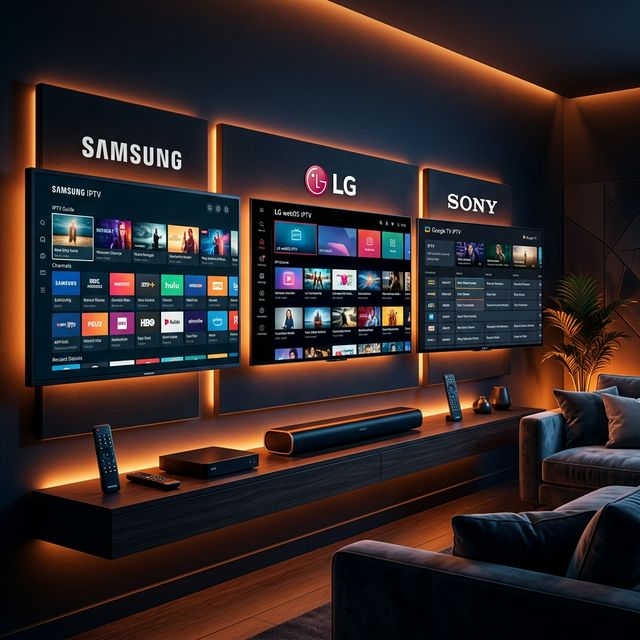
One of the most appealing aspects of cutting the cord and buying an IPTV subscription in 2026 is the promise of convenience. For many users, the ultimate goal is to stream high-quality live television without dealing with extra cables, external boxes, or secondary remote controls. This is where Smart TVs come into play. Modern televisions from brands like Samsung, LG, Sony, and TCL are powerful enough to connect to the internet and stream IPTV directly through their native operating systems.
However, setting up IPTV on a Smart TV is vastly different from setting it up on an Android TV box or an Amazon Firestick. Because Smart TVs often run on closed, proprietary operating systems (like Samsung’s Tizen or LG’s WebOS), you cannot simply download generic Android applications. You must use specialized Smart TV IPTV apps that use a “MAC Address Portal” system to load your provider’s playlist.
This comprehensive guide will walk you step-by-step through the process of choosing the right application and setting up your IPTV subscription directly on your Smart TV, regardless of the brand.
Understanding the MAC Address Portal System
🔥 Stop Searching, Start Streaming!
Why settle for buffering and locked channels? Venom IPTV gives you access to 35,000+ premium channels, global sports in 4K, and a massive VOD library.
View Pricing PlansBefore we dive into specific TV brands, it is crucial to understand how Smart TV IPTV apps work. Because typing a massive M3U link (which can be over 100 characters long) using a TV remote is a nightmare, Smart TV apps use a remote upload system.
When you download an IPTV app on your Smart TV (like IBO Player or Smart IPTV), the app will display a unique “MAC Address” or “Device ID” on the screen. To load your channels, you must:
- Open a web browser on your smartphone or computer.
- Go to the app developer’s official website.
- Enter the MAC Address displayed on your TV.
- Paste the M3U link or Xtream Codes provided by your IPTV service.
- Click “Upload” or “Send.”
- Restart the app on your TV, and your channels will instantly appear.
With this universal concept understood, let’s look at how to get IPTV running on the three major Smart TV platforms in 2026.
1. Setting Up IPTV on Samsung Smart TVs (Tizen OS)
Samsung is the leading TV manufacturer globally, but their Tizen operating system is highly restrictive. In recent years, Samsung has routinely removed popular IPTV applications from their store due to pressure from telecom companies. However, excellent premium alternatives are always available.
Top Apps for Samsung: IBO Player, Set IPTV, Bay TV.
Step-by-Step Guide for Samsung:
- Press the “Home” button on your Samsung remote and navigate to the “Apps” icon.
- Click the Search icon (magnifying glass) in the top right corner.
- Type in “IBO Player” (or any of the alternatives mentioned above) and click Install.
- Open the application. On the main screen, you will see a Device MAC Address and a Device Key. Write these down.
- On your phone or laptop, visit the website displayed on the TV screen (e.g., iboplayer.com/device/login).
- Enter the MAC Address and Device Key to log in.
- Click on “Add Playlist” or “Add XC Playlist.”
- Input the M3U link or Xtream Codes details provided by your IPTV seller and save.
- Return to your Samsung TV, restart the application, and your live channels, movies, and series will be ready to stream.
2. Setting Up IPTV on LG Smart TVs (WebOS)
LG’s WebOS is generally more lenient than Samsung’s Tizen, offering a wider variety of IPTV applications in their official content store. The process is very similar, but the app selection is often superior.
Top Apps for LG: Smart IPTV (SIPTV), Flix IPTV, IBO Player, DuplexPlay (if available in your region).
Step-by-Step Guide for LG:
- Press the “Home” button on your LG Magic Remote and open the “LG Content Store.”
- Use the search function at the top of the screen and look for “Smart IPTV” (SIPTV) or “Flix IPTV.”
- Download and launch the application.
- The app will immediately display a 12-character MAC Address on the screen.
- Go to the app’s website on your computer (for SIPTV, it is siptv.eu/mylist).
- Enter your TV’s MAC Address in the designated field.
- Paste your M3U URL link into the “URL” box and click “Send.”
- The website will confirm the playlist was added successfully. Restart the app on your LG TV, and the EPG and channels will begin loading.
3. Setting Up IPTV on Android Smart TVs (Sony, Philips, TCL)
If you own a Sony Bravia, a modern Philips, or a TCL television, you are in luck. These televisions run on Google’s Android TV or Google TV operating systems. This means you bypass the annoying MAC Address portal system entirely. You have direct access to the Google Play Store, allowing you to download the exact same premium applications used on NVIDIA Shields and Firesticks.
Top Apps for Android TVs: TiviMate, IPTV Smarters Pro, XCIPTV.
Step-by-Step Guide for Android TVs:
- Navigate to the “Google Play Store” on your TV’s home screen.
- Search for “TiviMate” or “IPTV Smarters Pro.”
- Install and open the application.
- Choose “Login with Xtream Codes API.”
- Using your TV remote, manually enter the Username, Password, and Server URL provided by your IPTV subscription provider.
- Click “Add User” or “Login.”
- The app will instantly download your channel list, VOD library, and EPG data directly to the TV.
The Pros and Cons of Smart TV IPTV
While the convenience of using a Smart TV natively is excellent, it does come with drawbacks. Smart TV processors are generally weaker than dedicated Android boxes. If Venom IPTV gives you a massive playlist (e.g., 100,000+ live channels and movies), apps on Samsung and LG TVs may freeze, crash, or take minutes to load the EPG.
If you experience severe lag or buffering on a Smart TV app, and you have already confirmed your internet speed is fast (over 50 Mbps), the limitation is likely your television’s internal hardware. In that scenario, purchasing an external Amazon Firestick 4K or an Android TV box is the ultimate solution to guarantee a smooth experience.
[!IMPORTANT] Ready to experience the ultimate TV package? Join over 12,000 satisfied customers who have switched to Venom IPTV. We offer dedicated 24/7 support, anti-freeze servers, and instant activation for all devices.
Frequently Asked Questions (FAQ)
Q: Why do Smart TV IPTV apps ask for a payment after 7 days? A: Most Smart TV applications (like IBO Player, SIPTV, or Flix IPTV) are premium software. They offer a 7-day free trial so you can test their interface. After 7 days, you must pay a one-time activation fee (usually around $5 to $8) to the app developer to keep using it. Remember, this fee goes to the app creator, not your IPTV subscription provider.
Q: How do I update my channel list on a Smart TV app? A: If you are using a MAC Address portal app, you do not need to upload your link again. Simply restart the application, or press the “0” or “Refresh” button on your TV remote, and the app will pull the latest channels and VODs from your provider’s server.
Q: Why is my IPTV app missing from the Samsung/LG store? A: TV manufacturers occasionally remove IPTV applications due to copyright claims from telecom giants. If your preferred app disappears, simply search the store for alternatives like “IPTV player” or “M3U player.” Because the market is so large, new apps are added to the TV app stores almost every week to replace the removed ones.
Conclusion
Your IPTV subscription is only as strong as the device streaming it. While the allure of free built-in Smart TV apps is tempting, upgrading to a dedicated piece of hardware like an Amazon Firestick or a premium Android TV Box will fundamentally transform your viewing experience. By pairing a highly-rated IPTV provider with robust, capable hardware, you will eliminate buffering, speed up menu navigation, and truly enjoy the future of television streaming in 2026.
Ready to Cut the Cord?
Experience premium IPTV with 35,000+ channels in 4K quality. No buffering, no contracts.
Get Started NowYou Might Also Like
The 2026 IPTV Device Guide: Firestick vs. Android Box vs. Smart TV
Choosing the best IPTV device in 2026? We compare Amazon Firestick 4K, premium Android TV boxes like NVIDIA Shield, and Smart TV apps to find the ultimate streaming setup.
Best Internet Speed for IPTV: Complete Bandwidth Guide for 2026
What internet speed do you need for IPTV? Complete guide covering bandwidth requirements for SD, HD, 4K streaming, multiple devices, and optimization tips.

The Ultimate 2026 Guide to Choosing the Best IPTV Subscription: Everything You Need to Know
Discover how to choose the best IPTV subscription in 2026. Learn about server stability, VOD libraries, and why anti-freeze technology is crucial for 4K streaming.
Best IPTV Subscription Service in 2026: The Complete Buyer's Guide
Compare the best IPTV subscription service like **Venom IPTV**s of 2026. Expert guide covering 4K streaming, anti-freeze servers, VOD libraries, pricing tiers, and setup for Firestick & Smart TV.

The Best IPTV Subscriptions for VOD: Movies, Series, and Cinema in 2026
Looking for a Netflix alternative? Discover the best IPTV subscriptions for VOD in 2026. Get 4K movies, massive series libraries, and Catch-up TV.
The Ultimate Guide to the Best Premium IPTV Subscriptions With No Buffering in 2026
Discover the best premium IPTV subscriptions with no buffering for live sports, 4K movies, and global channels. Learn how to choose the right provider today.