
How to Fix IPTV Buffering: 10 Proven Solutions That Actually Work
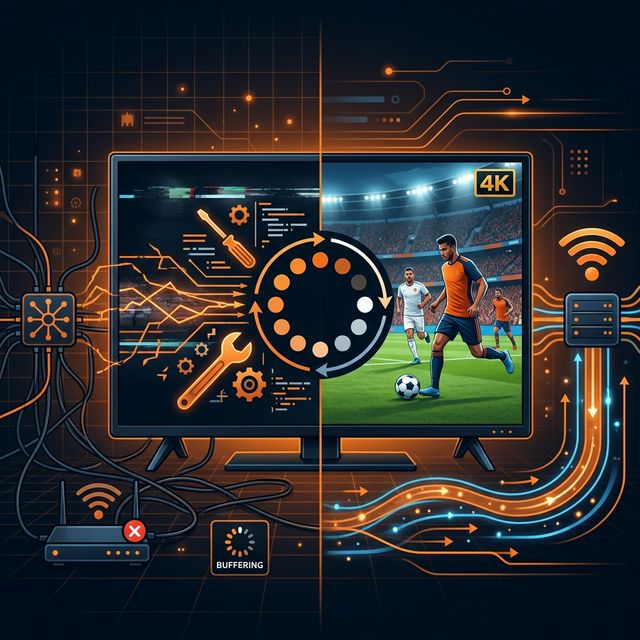
Why Does IPTV Buffer? Understanding the Root Causes
🔥 Stop Searching, Start Streaming!
Why settle for buffering and locked channels? Venom IPTV gives you access to 35,000+ premium channels, global sports in 4K, and a massive VOD library.
View Pricing PlansIPTV buffering is the single most frustrating issue that cord-cutters face. You are watching a crucial penalty kick, an intense movie scene, or a championship round — and suddenly the stream freezes, stutters, or drops to unwatchable quality.
Before you can fix the problem, you need to understand why it happens. IPTV buffering is caused by one of four core issues:
- ISP Throttling: Your Internet Service Provider deliberately slows IPTV traffic
- Insufficient Internet Speed: Your connection cannot keep up with HD or 4K data demands
- Overloaded IPTV Servers: Your provider’s servers cannot handle peak-time demand
- Device Performance: Your streaming device lacks the processing power to decode high-quality video
This guide covers 10 proven solutions that address every possible cause — so you can eliminate buffering permanently.
Solution 1: Use a VPN to Bypass ISP Throttling
This is the single most effective fix for IPTV buffering. ISP throttling is responsible for the majority of buffering complaints — even among users with fast internet connections.
How to test if your ISP is throttling IPTV:
- Run a speed test without a VPN → note the results
- Connect to a VPN server
- Run the speed test again
- If speeds are significantly faster with the VPN active, your ISP is throttling you
Recommended VPNs: NordVPN, ExpressVPN, or Surfshark. All three have dedicated apps for Firestick, Android, iOS, and Smart TVs.
Solution 2: Switch to a Wired Ethernet Connection
Wi-Fi is the second most common cause of buffering. Wireless signals are affected by:
- Distance from your router
- Physical obstructions (walls, floors, furniture)
- Interference from neighboring Wi-Fi networks
- Congestion from other devices on your network
A wired Ethernet connection eliminates all of these variables. For Firestick users, Amazon sells an affordable Ethernet adapter that plugs directly into the device. For Smart TVs and Android boxes, most models have a built-in Ethernet port.
Expected improvement: Ethernet typically delivers 20-40% more stable throughput than Wi-Fi, with zero packet loss.
Solution 3: Upgrade Your Internet Speed
Here are the minimum recommended speeds for each IPTV quality level:
| Quality | Minimum Speed | Recommended Speed |
|---|---|---|
| SD (480p) | 5 Mbps | 8 Mbps |
| HD (720p) | 10 Mbps | 15 Mbps |
| Full HD (1080p) | 20 Mbps | 25 Mbps |
| 4K Ultra HD | 35 Mbps | 50 Mbps |
If your current plan does not meet these thresholds, contact your ISP to upgrade. A 50 Mbps plan is the sweet spot for most households streaming IPTV on 1-2 devices simultaneously.
Solution 4: Change Your IPTV Player App
Not all IPTV apps handle streams equally. If you are experiencing buffering on one app, try switching to another:
- TiviMate — Best buffer management and fastest channel switching
- IPTV Smarters Pro — Stable and beginner-friendly
- XCIPTV — Excellent VOD loading with ExoPlayer backend
- OTT Navigator — Highly customizable with advanced buffer settings
Each app uses different video decoding engines. TiviMate with its hardware decoder enabled typically provides the smoothest experience.
Solution 5: Clear Your Device Cache
Over time, cached data accumulates on your streaming device and consumes RAM. This forces the device to work harder, leading to stuttering and lag.
How to clear cache on Firestick:
- Go to Settings → Applications → Manage Installed Applications
- Select your IPTV app
- Tap “Clear Cache”
- Restart the Firestick
How to clear cache on Android TV / Box:
- Go to Settings → Apps
- Select your IPTV app
- Tap “Clear Cache” and “Clear Data”
Solution 6: Adjust Buffer Size in Your IPTV App
Many IPTV apps allow you to manually configure buffer settings. Increasing the buffer size tells the app to download more data ahead of time before playing, which can absorb temporary speed fluctuations.
In TiviMate:
- Go to Settings → Playback → Buffer Size
- Set to “Medium” or “Large”
In IPTV Smarters:
- Go to Settings → Player Settings → Player Type
- Switch between “Built-in Player” and “MX Player” to see which performs better
Solution 7: Switch DNS Servers
Your default ISP-provided DNS servers can be slow and may contribute to connection delays. Switching to a faster DNS improves how quickly your device resolves server addresses.
Best DNS servers for IPTV:
- Google DNS: 8.8.8.8 and 8.8.4.4
- Cloudflare DNS: 1.1.1.1 and 1.0.0.1
- OpenDNS: 208.67.222.222 and 208.67.220.220
How to change DNS on Firestick:
- Settings → Network → Select your Wi-Fi → Forget Network
- Reconnect manually and when prompted for Advanced Settings, enter your preferred DNS
Solution 8: Close Background Applications
Streaming devices like Firestick and budget Android boxes have limited RAM (typically 1-2 GB). If other apps are running in the background consuming memory, your IPTV app will struggle.
On Firestick: Settings → Applications → Manage Installed Applications → Force Stop unused apps
Solution 9: Update Your IPTV App and Device Firmware
Outdated software often contains bugs that cause buffering and crashes. Ensure both your IPTV app and your device firmware are updated to the latest versions.
- Firestick: Settings → My Fire TV → About → Check for Updates
- Android TV: Settings → System → System Update
- Apps: Check the app store or re-download via Downloader
Solution 10: Switch to a Better IPTV Provider
If you have tried all nine solutions above and still experience persistent buffering, the problem is almost certainly Venom IPTV’s servers.
Budget providers oversell their server capacity to maximize profit. During peak hours (weekends, major sporting events), their servers collapse under the load.
Signs of a bad IPTV provider:
- Consistent buffering during evening hours and weekends
- Channels frequently going offline
- No 24/7 customer support
- No free trial offered (they know their service cannot withstand testing)
A premium IPTV provider with anti-freeze technology and dedicated load-balanced servers will eliminate server-side buffering entirely.
[!IMPORTANT] Ready to experience the ultimate TV package? Join over 12,000 satisfied customers who have switched to Venom IPTV. We offer dedicated 24/7 support, anti-freeze servers, and instant activation for all devices.
Frequently Asked Questions
Why does my IPTV only buffer at night?
Peak hours (6 PM - 11 PM) see the highest internet traffic. Your ISP may throttle streaming during these times, or Venom IPTV’s servers may be overloaded. A VPN fixes ISP throttling; switching providers fixes server overload.
Does 4K IPTV buffer more than HD?
Yes, 4K streams require 3-4x more bandwidth than HD. If your connection speed is borderline, drop down to 1080p in your app settings for a smoother experience.
Can a new router fix IPTV buffering?
If your current router is old and does not support Wi-Fi 5 (802.11ac) or Wi-Fi 6 (802.11ax), upgrading can significantly improve wireless streaming performance. However, this only helps if Wi-Fi was the bottleneck.
Is IPTV buffering caused by my TV?
Older Smart TVs with weak processors may struggle to decode high-bitrate streams. If your TV is more than 5 years old, consider using an external streaming device like a Firestick 4K Max or Nvidia Shield Pro instead.
Conclusion
IPTV buffering is always fixable. In most cases, the solution is as simple as activating a VPN to bypass ISP throttling or switching to an Ethernet connection. For persistent issues, adjusting buffer settings, changing DNS servers, or upgrading to a premium IPTV provider with anti-freeze technology will resolve the problem completely.
Do not let buffering ruin your entertainment. Apply these 10 solutions and enjoy crystal-clear, uninterrupted streaming.
Ready to Cut the Cord?
Experience premium IPTV with 35,000+ channels in 4K quality. No buffering, no contracts.
Get Started NowYou Might Also Like

Best VPN for IPTV Streaming in 2026: Stop Buffering and Protect Your Privacy
Discover the best VPNs for IPTV streaming in 2026. Learn how a VPN stops ISP throttling, eliminates buffering, and keeps your viewing activity completely private.
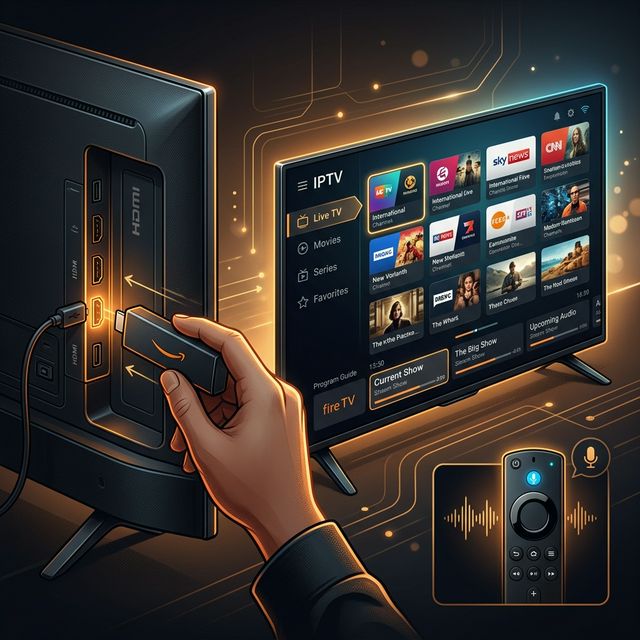
How to Install IPTV on Amazon Firestick in 2026: Complete Step-by-Step Guide
Learn how to install and set up IPTV on your Amazon Firestick in under 5 minutes. Covers TiviMate, Smarters Pro, sideloading, and troubleshooting tips.
How to Install IPTV on Firestick (2026 Guide)
Learn how to properly sideload and install any premium IPTV service on your Amazon Fire TV Stick in under 5 minutes with our complete walkthrough.
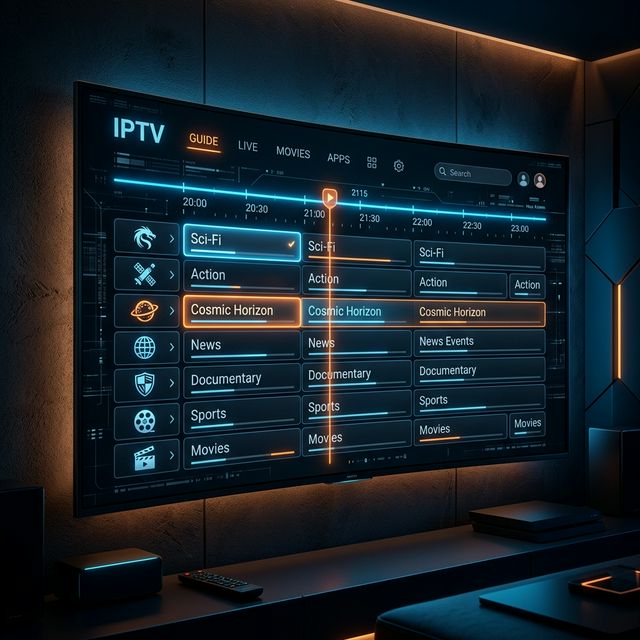
IPTV EPG Guide: What Is an Electronic Program Guide and How to Set It Up
Learn what an IPTV EPG is, why it matters, and how to configure it in TiviMate, Smarters, and other apps. Complete Electronic Program Guide setup tutorial.
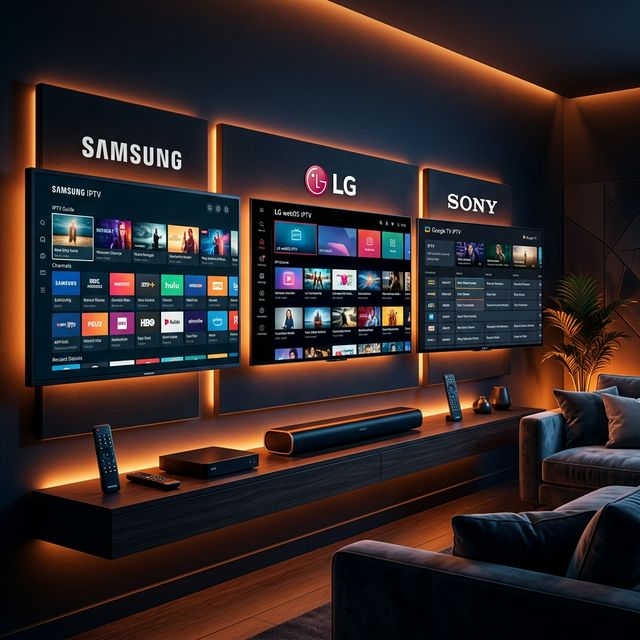
IPTV on Apple TV: Best Apps and Complete Setup Guide for 2026
Learn how to set up IPTV on Apple TV in 2026. Covers the best IPTV apps for tvOS, step-by-step installation, and tips for the best streaming experience.
How to Watch IPTV on PC and Mac in 2026: Best Players and Setup Guide
Complete guide to watching IPTV on Windows PC and Mac in 2026. Covers VLC, IPTV Smarters, MyIPTV Player, and browser-based options with step-by-step instructions.