
IPTV EPG Guide: What Is an Electronic Program Guide and How to Set It Up
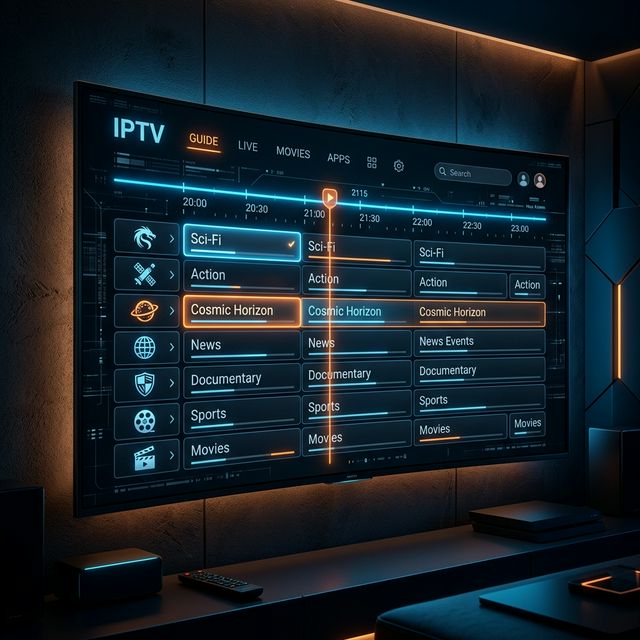
What Is an EPG in IPTV?
🔥 Stop Searching, Start Streaming!
Why settle for buffering and locked channels? Venom IPTV gives you access to 35,000+ premium channels, global sports in 4K, and a massive VOD library.
View Pricing PlansAn EPG (Electronic Program Guide) is essentially a digital TV schedule — a visual grid showing what is currently playing, what is coming up next, and what aired earlier across all your IPTV channels.
If you have ever used a cable TV guide, you already know what an EPG is. It transforms your IPTV experience from blindly scrolling through numbered channels into a structured, informative browsing experience.
Why EPG Matters for IPTV Users
Without an EPG, your IPTV channel list is just a long list of names. You have no idea what is currently airing, when a match starts, or what movie is on tonight. With a properly configured EPG, you can:
- See current and upcoming programs across all channels
- Plan your viewing by checking the schedule hours or days in advance
- Set recording reminders for upcoming shows and sports events (TiviMate Premium)
- Access catch-up TV by clicking past programs in the guide
- Search for specific content across the entire program guide
Types of EPG Sources
Provider-Integrated EPG (via Xtream Codes)
The easiest option. When you login using Xtream Codes API, Venom IPTV automatically includes EPG data. No manual configuration needed — the guide populates automatically.
Pros: Zero setup required, automatic updates Cons: Quality depends on your provider. Some have incomplete or inaccurate EPG data
External EPG Sources (XML/XMLTV)
You can add third-party EPG sources manually using XML URL feeds. These are independently maintained guides that often provide more accurate and comprehensive scheduling data.
Popular free EPG sources:
- epg.best — covers most European and US channels
- i.mjh.nz — Australian and international EPG
- m3u4u.com — EPG generation tool with custom options
Pros: Often more accurate and complete than provider EPG Cons: Requires manual setup and URL configuration
How to Set Up EPG in TiviMate
Using Provider EPG (Automatic)
If you logged in via Xtream Codes, EPG should load automatically. If it does not:
- Go to Settings → EPG
- Tap “Update EPG”
- Wait 1-3 minutes for data to download
- Return to the channel list and press Left on your remote to see the EPG grid
Adding a Custom EPG Source
- Go to Settings → EPG
- Select “EPG Sources” → “Add Source”
- Enter the XML URL of your EPG provider
- Set Update Interval to Every 12 hours
- Tap Save → Update EPG
EPG Display Settings
Customize how the guide looks:
- Settings → EPG → Number of Days: Set how many days of future scheduling to display (3-7 recommended)
- Settings → EPG → Show Past Programs: Enable to see what aired earlier (useful for catch-up)
- Settings → EPG → Font Size: Adjust for readability on your specific TV size
How to Set Up EPG in IPTV Smarters Pro
- EPG loads automatically with Xtream Codes login
- To access the guide, tap the “TV Guide” icon from the main menu
- Browse through channels and time slots
- For manual EPG: Go to Settings → EPG Source → enter XML URL
How to Set Up EPG in Smart IPTV (Samsung/LG)
- Visit siptv.app on your phone or computer
- Enter your TV’s MAC address
- In the EPG field, paste your EPG XML URL
- Click Send
- Restart the Smart IPTV app on your TV
Troubleshooting EPG Issues
EPG Shows “No Data” for Most Channels
Causes:
- Your provider’s EPG coverage may be incomplete
- EPG data has not fully downloaded yet
- Channel IDs in your playlist do not match EPG source IDs
Solutions:
- Force update: Settings → EPG → Update
- Wait 24 hours — some EPG sources take time to fully populate
- Try an external EPG source with better coverage
- Contact Venom IPTV about EPG support
EPG Shows Wrong Times
Cause: Timezone mismatch between your EPG source and your local timezone.
Solution:
- In TiviMate: Settings → EPG → Time Shift → adjust hours (+/- to match your timezone)
- In Smarters: Settings → EPG Timezone → select your timezone
EPG Data Is Outdated
Cause: EPG is not refreshing automatically.
Solution:
- Set auto-refresh interval to 12 hours in your app settings
- Clear EPG cache and force a fresh download
- Verify your EPG XML URL is still active and not expired
Some Channels Have EPG but Others Do Not
This is normal. EPG coverage depends on:
- Your provider’s EPG database completeness
- The external EPG source’s channel coverage
- Whether the channel IDs in your playlist match the EPG source
Channels from smaller countries or niche categories may not have EPG data available from any source.
EPG Features in Different IPTV Apps
| Feature | TiviMate | Smarters Pro | Smart IPTV | XCIPTV |
|---|---|---|---|---|
| Auto EPG (Xtream) | ✅ | ✅ | ❌ | ✅ |
| Custom EPG Source | ✅ | ⚠️ Limited | ✅ (via web) | ✅ |
| Multi-Day Guide | ✅ (7 days) | ✅ (3 days) | ✅ (3 days) | ✅ (3 days) |
| Catch-Up via EPG | ✅ | ✅ | ❌ | ✅ |
| Recording from EPG | ✅ (Premium) | ❌ | ❌ | ❌ |
| Search EPG | ✅ | ✅ | ❌ | ✅ |
| Time Shift Adjust | ✅ | ✅ | ❌ | ✅ |
Tips for the Best EPG Experience
- Use Xtream Codes login whenever possible — it includes automatic EPG
- Set auto-refresh to 12 hours so your guide stays current
- Combine provider EPG with an external source for maximum coverage
- Use TiviMate for the best EPG grid interface with recording support
- Adjust timezone settings if program times appear incorrect
[!IMPORTANT] Ready to experience the ultimate TV package? Join over 12,000 satisfied customers who have switched to Venom IPTV. We offer dedicated 24/7 support, anti-freeze servers, and instant activation for all devices.
Frequently Asked Questions
Is EPG included with every IPTV subscription?
Most Venom IPTV include EPG as part of the Xtream Codes login. However, coverage quality varies. Some providers have comprehensive EPG for most channels, while others only cover major channels.
Can I use EPG without Xtream Codes?
Yes. You can add EPG manually via an XML URL in most IPTV apps. This works alongside M3U playlists.
Does EPG use extra internet data?
EPG data is very small — typically a few megabytes updated once or twice per day. It has negligible impact on your internet usage.
Which app has the best EPG?
TiviMate has the best EPG interface by far — a beautiful full-screen grid with multi-day support, catch-up TV, and recording scheduled directly from the guide.
Conclusion
A properly configured EPG transforms your IPTV experience from channel-surfing chaos into a structured, cable-TV-like viewing experience. Use Xtream Codes for automatic EPG, supplement with external XML sources for better coverage, and choose TiviMate for the best program guide interface available.
Ready to Cut the Cord?
Experience premium IPTV with 35,000+ channels in 4K quality. No buffering, no contracts.
Get Started NowYou Might Also Like
How to Fix IPTV Buffering: 10 Proven Solutions That Actually Work
Struggling with IPTV buffering? Learn 10 expert-tested methods to eliminate freezing, stuttering, and lag on any device including Firestick, Smart TV, and Android.
How to Install IPTV on Amazon Firestick in 2026: Complete Step-by-Step Guide
Learn how to install and set up IPTV on your Amazon Firestick in under 5 minutes. Covers TiviMate, Smarters Pro, sideloading, and troubleshooting tips.
How to Install IPTV on Firestick (2026 Guide)
Learn how to properly sideload and install any premium IPTV service on your Amazon Fire TV Stick in under 5 minutes with our complete walkthrough.
IPTV on Apple TV: Best Apps and Complete Setup Guide for 2026
Learn how to set up IPTV on Apple TV in 2026. Covers the best IPTV apps for tvOS, step-by-step installation, and tips for the best streaming experience.
How to Watch IPTV on PC and Mac in 2026: Best Players and Setup Guide
Complete guide to watching IPTV on Windows PC and Mac in 2026. Covers VLC, IPTV Smarters, MyIPTV Player, and browser-based options with step-by-step instructions.
IPTV Smarters Pro Setup Guide 2026: Installation on Every Device
Complete IPTV Smarters Pro setup guide for Firestick, Android, iOS, Smart TV, and PC. Step-by-step instructions with screenshots and troubleshooting tips.