
How to Install IPTV on Firestick (2026 Guide)
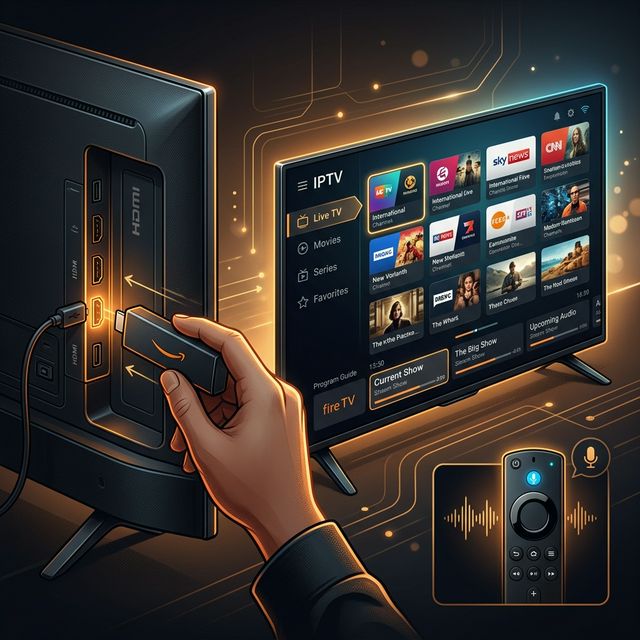
The Amazon Firestick is undeniably one of the most popular platforms for streaming IPTV. It’s affordable, incredibly portable, and powerful. However, since many custom IPTV apps aren’t natively listed on the Amazon App Store, you need to use a technique called “sideloading”.
Follow these exact steps to quickly install your IPTV app on a Firestick.
Step 1: Enable Apps from Unknown Sources
🔥 Stop Searching, Start Streaming!
Why settle for buffering and locked channels? Venom IPTV gives you access to 35,000+ premium channels, global sports in 4K, and a massive VOD library.
View Pricing PlansBefore you can install third-party applications, you must permit your Firestick to do so.
- From the Firestick Home screen, go to Settings (the gear icon).
- Click on My Fire TV.
- Select Developer Options. (Note: If Developer Options is missing, go to ‘About’, highlight ‘Fire TV Stick’ and click the center select button 7 times to reveal it).
- Turn ON Apps from Unknown Sources.
Step 2: Get the Downloader App
The ‘Downloader’ app is the tool we will use to fetch the IPTV application file from the internet.
- Go back to the Firestick Home screen and navigate to the Find / Search icon.
- Type in Downloader.
- Click the orange Downloader app icon and hit Download/Install.
- Once installed, Open the app and ‘Allow’ it to access your device’s files.
Step 3: Download and Install Your IPTV App
Now you just need the direct download link (or code) provided by your IPTV service provider.
- In the Downloader app, select the URL box.
- Enter the specific URL or quick-code for your IPTV player (e.g., Smarters, Tivimate, or our custom Venom IPTV App).
- Click Go. The APK file will begin downloading automatically.
- When finished, a prompt will appear. Click Install.
- Once complete, click Done (and you can safely delete the APK file to save space when prompted).
Step 4: Login and Enjoy
Launch your newly installed IPTV app from your Apps list. You will be greeted by a login screen. Enter the Username, Password, and Server URL provided to you when you purchased your subscription.
Enjoy your thousands of live channels and VODs directly on your TV!
[!IMPORTANT] Ready to experience the ultimate TV package? Join over 12,000 satisfied customers who have switched to Venom IPTV. We offer dedicated 24/7 support, anti-freeze servers, and instant activation for all devices.
Ready to Cut the Cord?
Experience premium IPTV with 35,000+ channels in 4K quality. No buffering, no contracts.
Get Started NowYou Might Also Like
How to Fix IPTV Buffering: 10 Proven Solutions That Actually Work
Struggling with IPTV buffering? Learn 10 expert-tested methods to eliminate freezing, stuttering, and lag on any device including Firestick, Smart TV, and Android.
How to Install IPTV on Amazon Firestick in 2026: Complete Step-by-Step Guide
Learn how to install and set up IPTV on your Amazon Firestick in under 5 minutes. Covers TiviMate, Smarters Pro, sideloading, and troubleshooting tips.
IPTV EPG Guide: What Is an Electronic Program Guide and How to Set It Up
Learn what an IPTV EPG is, why it matters, and how to configure it in TiviMate, Smarters, and other apps. Complete Electronic Program Guide setup tutorial.
IPTV on Apple TV: Best Apps and Complete Setup Guide for 2026
Learn how to set up IPTV on Apple TV in 2026. Covers the best IPTV apps for tvOS, step-by-step installation, and tips for the best streaming experience.
How to Watch IPTV on PC and Mac in 2026: Best Players and Setup Guide
Complete guide to watching IPTV on Windows PC and Mac in 2026. Covers VLC, IPTV Smarters, MyIPTV Player, and browser-based options with step-by-step instructions.
IPTV Smarters Pro Setup Guide 2026: Installation on Every Device
Complete IPTV Smarters Pro setup guide for Firestick, Android, iOS, Smart TV, and PC. Step-by-step instructions with screenshots and troubleshooting tips.