
How to Install IPTV on Amazon Firestick in 2026: Complete Step-by-Step Guide
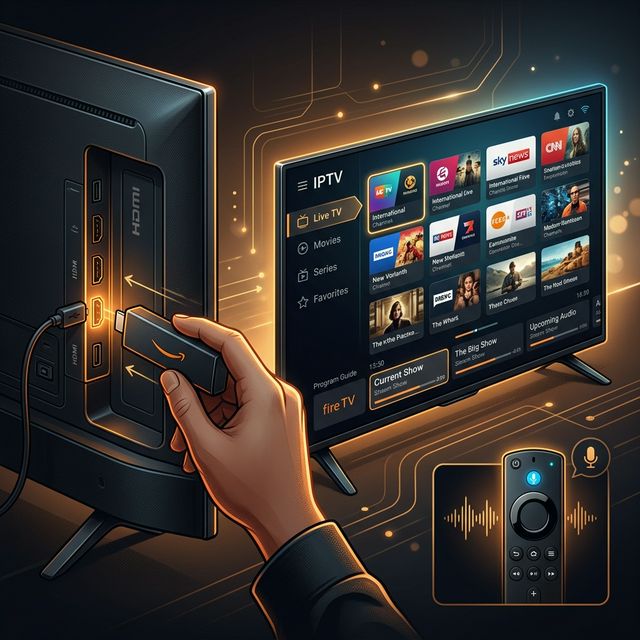
Why the Amazon Firestick Is the Best Device for IPTV
🔥 Stop Searching, Start Streaming!
Why settle for buffering and locked channels? Venom IPTV gives you access to 35,000+ premium channels, global sports in 4K, and a massive VOD library.
View Pricing PlansThe Amazon Firestick has become the undisputed king of IPTV streaming devices — and for good reason. It is affordable, compact, powerful enough to handle Full HD and 4K streams, and compatible with virtually every major IPTV player application on the market.
Whether you own the basic Fire TV Stick Lite, the mid-range Fire TV Stick 4K, or the flagship Fire TV Stick 4K Max, setting up your IPTV subscription takes less than five minutes. This guide walks you through every step.
Before You Start: What You Need
Before diving into the installation, make sure you have the following ready:
- A working Amazon Firestick connected to your TV and Wi-Fi
- An active IPTV subscription with login credentials (Xtream Codes API or M3U link)
- A stable internet connection — at least 15 Mbps for HD, 40+ Mbps for 4K
- Optionally, a VPN app to prevent ISP throttling
Method 1: Installing TiviMate on Firestick
TiviMate is widely regarded as the best IPTV player for Firestick in 2026. Its sleek interface, lightning-fast channel switching, and built-in EPG make it the top choice for serious IPTV users.
Step 1: Enable Apps from Unknown Sources
TiviMate is not available on the official Amazon App Store, so you need to enable sideloading:
- Go to Settings → My Fire TV → Developer Options
- Toggle “Apps from Unknown Sources” to ON
- If you see “Install Unknown Apps,” select it and enable it for your browser or Downloader app
Step 2: Install the Downloader App
- From the Firestick home screen, go to Search (magnifying glass icon)
- Type “Downloader” and install the orange Downloader app by AFTVnews
- Open the app and accept the permissions
Step 3: Download and Install TiviMate
- In the Downloader app, type this URL: https://tivimate.com
- Download the latest TiviMate APK file
- When the download completes, select “Install”
- Open TiviMate once installation is finished
Step 4: Add Your IPTV Subscription
- Select “Add Playlist”
- Choose “Xtream Codes” (recommended) or “M3U Playlist”
- Enter your Username, Password, and Server URL provided by Venom IPTV
- Wait 1-3 minutes for channels, VOD, and EPG data to load
- Start watching!
Method 2: Installing IPTV Smarters Pro on Firestick
If TiviMate feels too advanced, IPTV Smarters Pro offers a Netflix-style interface that many beginners prefer.
Step 1: Search for Smarters Pro
- From the Firestick home screen, go to Search
- Type “IPTV Smarters Pro”
- Download and install directly from the Amazon App Store
Step 2: Login With Your Credentials
- Open IPTV Smarters Pro
- Select “Login with Xtream Codes API”
- Enter any name for the playlist, then input your Username, Password, and Portal URL
- Tap “Add User”
- Your Live TV, Movies, Series, and EPG will load automatically
Method 3: Using XCIPTV Player
XCIPTV is a third excellent option, particularly praised for its stunning dark-mode interface and fast VOD loading speeds powered by ExoPlayer.
- Sideload XCIPTV using the Downloader app (same process as TiviMate)
- Open the app and select “Login via Xtream Codes”
- Enter your credentials and let the channel list populate
- Navigate through the beautiful category-based interface
Optimizing Your Firestick for the Best IPTV Performance
Even with a great app and a premium subscription, your Firestick needs to be optimized to deliver the smoothest experience possible.
Clear Cache Regularly
Over time, cached data clogs your Firestick’s limited memory. Navigate to Settings → Applications → Manage Installed Applications, select your IPTV app, and tap “Clear Cache” every few weeks.
Use an Ethernet Adapter
Wi-Fi is convenient but inherently unstable. Amazon sells an official Ethernet adapter for Fire TV that plugs directly into your router. This eliminates wireless interference and provides a rock-solid, consistent connection — critical for 4K IPTV streaming.
Disable Background Apps
The Firestick has limited RAM. Close unused background apps by going to Settings → Applications → Manage Installed Applications and force-stopping anything you are not actively using.
Install a VPN
ISPs frequently throttle IPTV traffic during peak hours. A VPN like NordVPN or ExpressVPN encrypts your connection, making it impossible for your ISP to identify and slow down your IPTV streams.
Troubleshooting Common Firestick IPTV Issues
Channels Not Loading
- Double-check your Xtream Codes credentials — a single typo in the server URL will prevent authentication
- Confirm your subscription is active with Venom IPTV
- Restart the Firestick: Settings → My Fire TV → Restart
Buffering During Live TV
- Test your internet speed using the Silk Browser (search “speed test” on Google)
- Switch to a wired Ethernet connection
- Activate your VPN to bypass potential ISP throttling
- Lower the stream quality from 4K to FHD within your IPTV app settings
App Crashes or Freezes
- Clear the app cache (Settings → Applications → your IPTV app → Clear Cache)
- Update the app to the latest version via Downloader
- If persistent, uninstall and reinstall the app completely
[!IMPORTANT] Ready to experience the ultimate TV package? Join over 12,000 satisfied customers who have switched to Venom IPTV. We offer dedicated 24/7 support, anti-freeze servers, and instant activation for all devices.
Frequently Asked Questions
Is TiviMate free on Firestick?
TiviMate offers a free version with basic functionality and a single playlist. The Premium version ($5.49/year) unlocks unlimited playlists, recording, catch-up TV, and advanced EPG features. It is well worth the upgrade.
Can I use my IPTV subscription on multiple Firesticks?
Yes, as long as your IPTV plan supports multiple simultaneous connections. Most providers offer 1, 2, or 3-connection plans. Each Firestick would use one connection.
Do I need a VPN on Firestick for IPTV?
While not mandatory, a VPN is strongly recommended. It prevents ISP throttling, protects your privacy, and can unlock geo-restricted channels. Most premium VPNs have dedicated Firestick apps.
Which Firestick model is best for 4K IPTV?
The Amazon Fire TV Stick 4K Max is the best choice. It supports Wi-Fi 6, has the fastest processor in the Firestick lineup, and handles 4K HDR streams effortlessly.
What internet speed do I need for IPTV on Firestick?
- SD quality: 5-10 Mbps
- HD quality: 15-20 Mbps
- Full HD (1080p): 25 Mbps
- 4K Ultra HD: 40-50 Mbps
Conclusion
Setting up IPTV on Amazon Firestick is one of the easiest ways to cut the cord and access thousands of live channels, movies, and series for a fraction of the cost of cable. Whether you choose TiviMate, IPTV Smarters Pro, or XCIPTV, the process takes under five minutes.
Pair your Firestick with a premium IPTV subscription, a fast internet connection, and a reliable VPN — and you have the ultimate home entertainment setup.
Ready to Cut the Cord?
Experience premium IPTV with 35,000+ channels in 4K quality. No buffering, no contracts.
Get Started NowYou Might Also Like

The Best IPTV Apps for Android TV in 2026
Discover the top-rated, fastest, and most feature-rich IPTV players designed specifically for Android TV interfaces.
TiviMate Setup Guide 2026: The Ultimate IPTV Player for Android and Firestick
Master TiviMate with this complete 2026 setup guide. Learn installation, Xtream Codes configuration, EPG setup, recording, and premium features on Firestick and Android TV.
How to Fix IPTV Buffering: 10 Proven Solutions That Actually Work
Struggling with IPTV buffering? Learn 10 expert-tested methods to eliminate freezing, stuttering, and lag on any device including Firestick, Smart TV, and Android.
How to Install IPTV on Firestick (2026 Guide)
Learn how to properly sideload and install any premium IPTV service on your Amazon Fire TV Stick in under 5 minutes with our complete walkthrough.
IPTV EPG Guide: What Is an Electronic Program Guide and How to Set It Up
Learn what an IPTV EPG is, why it matters, and how to configure it in TiviMate, Smarters, and other apps. Complete Electronic Program Guide setup tutorial.
IPTV on Apple TV: Best Apps and Complete Setup Guide for 2026
Learn how to set up IPTV on Apple TV in 2026. Covers the best IPTV apps for tvOS, step-by-step installation, and tips for the best streaming experience.